With most Unity3d examples I offer the Unity Webplayer as well as Chrome Native Client for testing purposes.
Chrome Native Client is particularly interesting for Linux users, since to this date (11.01.2014) there is no
Unity3d Webplayer for Linux available, but there is still Chrome and Chromium, respectively (let us call it the
lite version of Chrome  ).
).
Activating Chrome Native Client is fairly simple. Just enter about:plugins into the address field and tag Native Client.
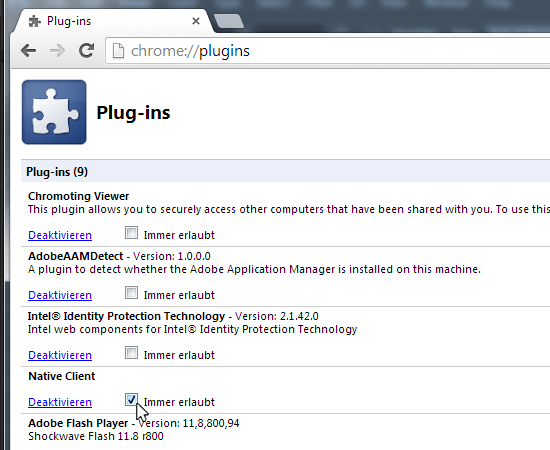
Then, access the respective site. Apparently, you also need to activate JavaScript to be able to properly load the page.
Newer versions also have so-called Flags. Tagging these may also be necessary. Here, you also have to input chrome://flags/ and click ‘activate’ with Native Client
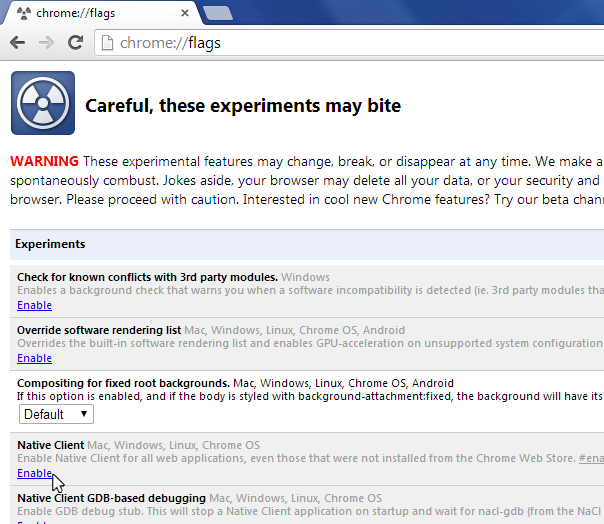
When it has a white background and »deactivate« shows up, it is currently switched on!
Finally I would like to state that I am not liable for any damage that may occur to your data or your system. Chrome Native Client is a great idea by Google which has been used sparingly so far and the risks are largely unknown. For this reason I recommend switching it on when needed and switching it off when not. Of course, only use it with trusted sites.
Share on Facebook Share on Twitter Share on LinkedIn
Tutorials